Strix: Hack-Test Your Own App with AI Agents (Beginner Guide)
Install Strix, the open-source AI pentesting tool, run a safe first scan on a practice app, and read the vulnerability report. Step by step for beginners.
AI writes code fast, but it won’t tell you whether that code is safe. Strix tries to break your app the way an attacker would, then hands you a report of what it got into and how to fix it. This guide takes you from nothing installed to your first report.
It takes about 30 minutes plus scan time. You need a Mac or Linux computer, Docker, and an API key for an AI model.
What you’re building
Strix is an open-source AI penetration testing tool (Apache-2.0 license, 66k+ GitHub stars). A penetration test, or “pentest”, means attacking your own system on purpose to find weak spots before someone else does.
Strix runs a team of AI agents. Some map your app, some try attacks, and the rest check whether an attack really worked. According to the README, findings come with a working proof-of-concept, so you’re not chasing guesses.
You → strix --target <your app> → AI agents attack it inside Docker → reportThe agents work inside a Docker sandbox on your machine. Docker runs programs in an isolated container, so the attack tools never get installed on your actual system.
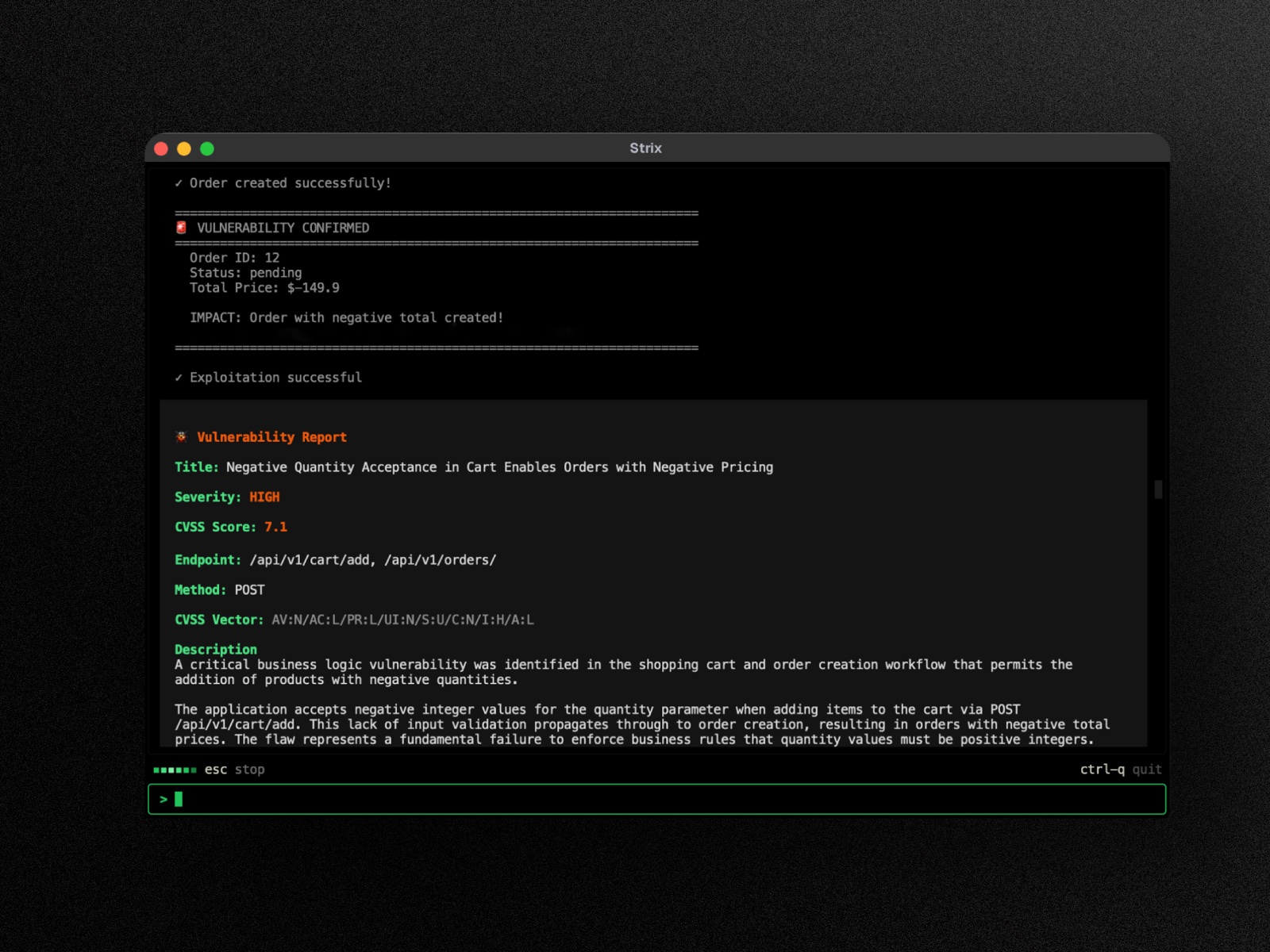
That screenshot is the kind of bug Strix is good at: a business-logic flaw a normal scanner would miss, with the exact endpoints, severity, and an explanation.
Before you start: the honest catch
- Only scan what you own. Strix really attacks its target. The README is blunt: run it only against systems you own or have explicit, written permission to test. Unauthorized testing is illegal in most countries. In this guide you’ll practice on a deliberately vulnerable app running on your own computer.
- Strix is free; the AI model is not. Strix itself costs nothing, but every agent step calls an AI model, and your provider bills you for that. You can run a local model through Ollama instead, but results depend heavily on how capable the model is.
- Scans take time. The default “deep” mode runs 1 to 4 hours. You’ll use “quick” mode, which the docs say takes minutes.
Step 1: Install and start Docker
Strix needs Docker running before it starts.
- Download Docker Desktop for your system and install it.
- Open Docker Desktop and wait until it says it’s running.
- Check in your terminal:
docker --versionIf you see a version number, Docker is ready.
On Windows: the Strix docs only show Mac and Linux commands. I’d run everything in this guide inside WSL (Windows Subsystem for Linux).
Step 2: Install Strix
Paste the official installer into your terminal:
curl -sSL https://strix.ai/install | bashIf you already use Python tools, the docs also list pipx:
pipx install strix-agentClose and reopen your terminal, then check that the strix command exists:
command -v strixIf it prints a path, Strix is installed.
Step 3: Connect an AI model
Strix needs two settings: which model to use (STRIX_LLM) and your API key for it (LLM_API_KEY). The docs’ default pick is GLM-5.3 through OpenRouter, a service that gives you many AI models behind one key.
- Create an account at openrouter.ai and add a small amount of credit.
- Create a key at openrouter.ai/keys and copy it.
- In your terminal:
export STRIX_LLM="openrouter/z-ai/glm-5.3"
export LLM_API_KEY="your-api-key"
Strix saves this to ~/.strix/cli-config.json, so you only set it once.
Keep the key private. Anyone with it can spend your credit.
Other options from the provider docs: openai/gpt-5.4, anthropic/claude-sonnet-4-6, or a local model such as ollama/llama4 with LLM_API_BASE="http://localhost:11434". If you pay for ChatGPT Plus or Pro, strix auth login chatgpt runs Strix on that subscription instead of a metered key.
Step 4: Start a safe practice target
Never point your first scan at a real website. Use OWASP Juice Shop, a shop app built to be full of security holes so people can practice legally.
Start it with the command from its README:
docker run --rm -p 127.0.0.1:3000:3000 bkimminich/juice-shopOpen http://localhost:3000. If you see the Juice Shop store, leave that terminal window open and open a new one for the next step.
Step 5: Run your first scan
In the new terminal window:
strix --target http://localhost:3000 --scan-mode quickThe first run downloads the Strix sandbox image, so it takes longer. Then you’ll watch the agents work in your terminal.
You might wonder how agents inside Docker can reach localhost on your computer. Strix handles it: it rewrites localhost targets to host.docker.internal, Docker’s address for the machine it runs on.
Step 6: Read the report
Each scan saves its results to strix_runs/<run-name> in the folder you ran it from. For a readable dashboard, run:
strix viewThat opens the most recent run in your browser. According to the docs, the dashboard shows:
- an overview with a severity breakdown
- every validated finding with its details and reproduction steps
- a live map of the agent team
Nothing leaves your machine. The link it prints contains a token that gives full access to the run, so don’t share it.
For each finding, start with the severity (critical and high first), then the reproduction steps, then the suggested fix.
Step 7: Scan your own project
Once the practice run makes sense, point Strix at code you own:
# a project folder on your computer
strix --target ./your-app --scan-mode quick

# a GitHub repository you own
strix --target https://github.com/you/your-repo --scan-mode quick
Giving it both the source code and the running app is a “white-box” test, and it usually finds more:
strix -t https://github.com/you/your-repo -t http://localhost:3000When you’re ready for a full audit, drop --scan-mode quick and Strix uses its default deep mode.
Troubleshooting
Strix fails right after starting
Docker probably isn’t running. Open Docker Desktop, wait until it’s ready, and run docker --version again.
The model call fails
Check that STRIX_LLM uses the provider/model format (for example openrouter/z-ai/glm-5.3), that your key is correct, and that your OpenRouter account has credit.
The scan can’t reach your app
Make sure the app still loads in your browser at the address you gave Strix. For Juice Shop, the first terminal window with the docker run command has to stay open.
What else you can do with it
- Headless mode,
strix -n --target <app>, prints findings and exits with an error code when it finds something. Useful for scripts and servers. - The README includes a GitHub Actions workflow that runs a quick scan on every pull request.
npx skills add usestrix/strixgives Claude Code, Cursor or Codex skills for running pentests and fixing findings from inside your coding agent.
Full documentation: docs.strix.ai.
Quick recap
- Install Docker Desktop and start it.
- Install Strix with
curl -sSL https://strix.ai/install | bash. - Set
STRIX_LLMandLLM_API_KEY. - Start Juice Shop as a practice target.
- Run
strix --target http://localhost:3000 --scan-mode quick. - Open the results with
strix view. - Move on to your own code, and only ever code you own.